My Tribe connects you with a trusted household inside BeReady so you can plan together. You choose what to share, one line at a time. Only your display name and the date you connected are always shared. Every other line stays off until you turn it on, and you can stop sharing whenever you want.
Your tribe is the household you call first when something goes wrong. You can connect with more than one household, and each connection has its own settings.
Why isn't My Tribe in my menu?
My Tribe needs a BeReady or Combo subscription, and it may not be switched on for every account yet. When it's available to you, it appears in the BeReady menu and opens at My Tribe. If you'd like it, see BeReady and Combo pricing.
Sending an invitation
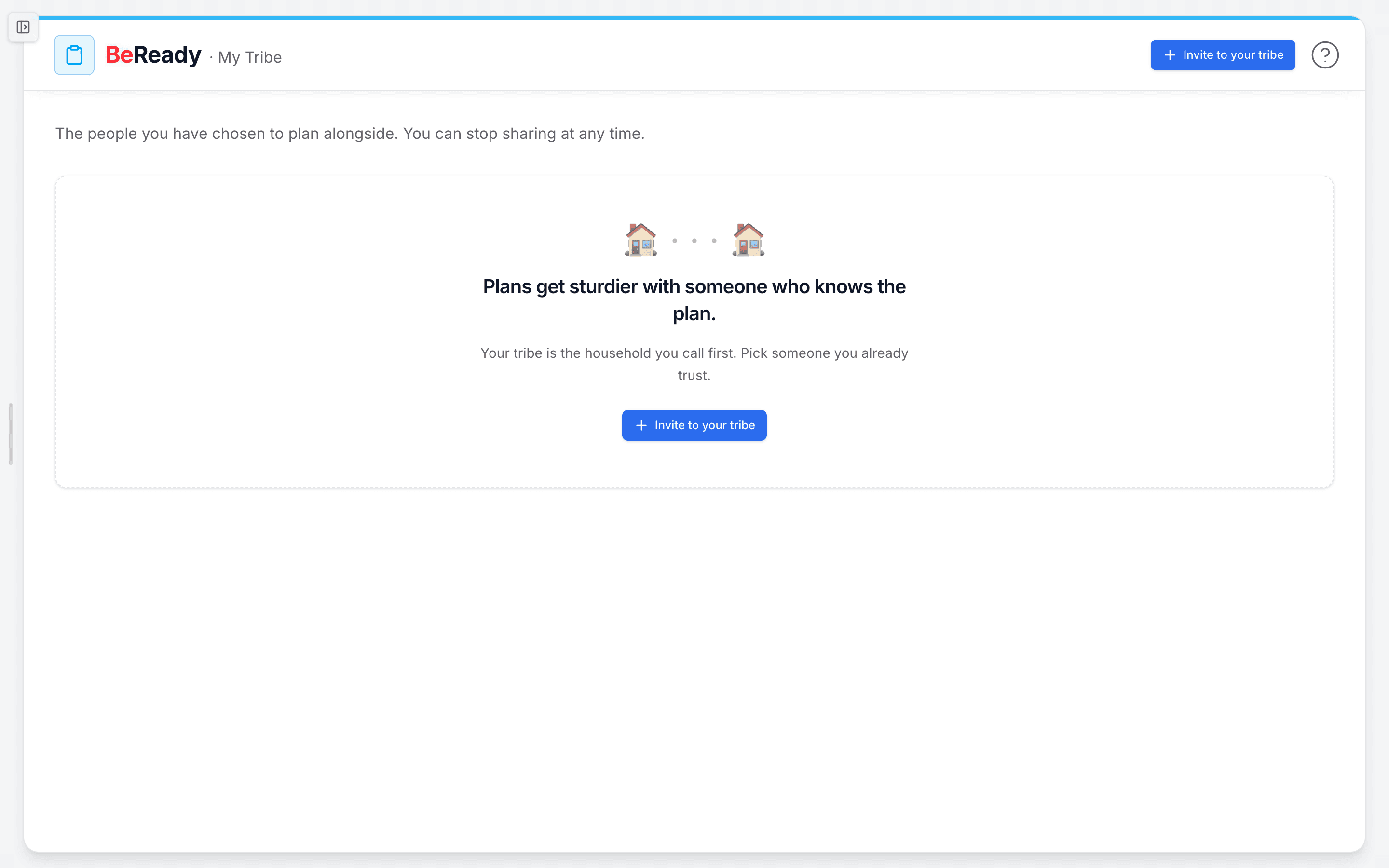
- On My Tribe, click Invite to your tribe.
- Enter Their email. You can add Their name and A line for them of up to 120 characters, like "You came to mind when I was setting up our hurricane plan." That line appears word for word in their invitation email and on the accept page. Once they accept, it becomes the origin sentence on your shared card.
- Under What do you want to share?, tick only what you want them to see. One line is always on: You are in their tribe roster. Everything else is opt-in:
- They can see your meeting points
- They can see your out-of-state contact
- They can download your tear sheets
- They can see your skill progress
- They can see your drill completions
- They get a copy of your BeAware alerts (needs BeAware on both sides)
- Click Preview what [name] will see to read the email text before it goes out. Then click Send invite.
The email comes from BeReady's address on your behalf, with the subject "[Your name] would like to plan with you". Your email address is masked in the message body. For example, jane.doe@example.com shows as jan***@***ple.com.
Invitations have limits that stop spam, such as a daily cap and waiting periods on new accounts and after a name change. If one applies, you'll see "This invitation can't be sent right now. Please try again later." The message doesn't say which limit applied.
What the person you invite sees
They need to open the invitation while signed in with the email address you invited. An invitation can't be accepted from a different email.
The invitation page shows your line, what you're offering to share, and What you'd like to share back. Their side starts at the minimum, and they choose what to add. They can pick Join [your name]'s tribe, Decide later or Decline. If they use My Tribe, invitations sent to them also wait at the top of that page under "You have an invitation".
Your invitations sit under Pending with "Sent [date] · expires [date]". Once they've opened it, a tag shows "Opened" with when. Each has Copy link, Resend and Cancel. Invitations expire after 7 days by default, and an expired one can't be resent. To reach someone after that, send a fresh invitation.
What can a tribe member see?
A tribe member sees your display name and the date you connected, plus only the lines you've turned on for them. Meeting points and out-of-state contact show nothing until you both turn them on.
Your display name is the full name on your profile. If your profile has no name, it's the part of your email address before the @, so set your name first if you'd rather they didn't see that.
| Line | What it covers | What it leaves out | Where it shows today |
|---|---|---|---|
| Roster (always on) | Your display name and the date you connected | Your email, your address and any plan details | Their My Tribe page, and a My Tribe card in their plan |
| Meeting points (both must share) | The labels and descriptions of your primary and backup meeting points from your latest plan | Your home address and the routes between points | Your shared card, side by side, or as two pins on a map with the walking distance between them |
| Out-of-state contact (both must share) | Your contact's name and how to reach them | Your other emergency contacts and relationship notes | A line on My Tribe when you've both entered the same contact name in your plans, such as "You and Sarah both rely on Aunt Marisol." |
| Tear sheets | Your one-page plan PDFs from your active plan | Drafts and edits in progress | There's no download screen for tribe members yet |
| Skill progress | Which skills you've started and completed | Your notes and what you practiced | A "Sharing skill progress" listing on the Skills Tracker, without individual skills |
| Drill completions | Which drills you've completed, and when | Your answers and notes | It switches on the co-practice suggestion when you both share |
| BeAware alerts (BeAware on both sides) | A calm copy of the alerts for your address | Your full alert history, alert preferences and other addresses you monitor | A line on their BeAware dashboard when you're both under the same kind of alert, such as "Sarah's household is also under an air quality advisory." |
Your saved home address isn't one of the lines, so turning a line on doesn't send it. The one place an address can appear is a meeting point's own description. Read your meeting points in your plan before you share them, because whatever the description says is what they'll read.
When only one of you shares a mutual line, the card says so plainly. For example: "You share your meeting point. They haven't shared theirs back yet."
The shared card also carries a few personal touches. Each side can name the connection; that name is private to whoever wrote it. Each side can leave a note of up to 280 characters for the other, like where the gas shutoff is, and the other household reads it on the card.
Protecting what you share
The email address you invite, the private name you give a connection, and your notes for the other household are encrypted in transit and at rest. BeReady also keeps a log each time shared information is viewed, once per line per day.
To download a copy of your tribe data, open your profile's Account tab and click Export tribe data. It covers your connections, the invitations you've sent and the tribe actions you've taken.
My Tribe also works offline. Your browser keeps a copy of the page, and when you lose signal you'll see "You're offline — showing your tribe as it was." New invites and edits wait until you're back online.
Only accept invitations from people you know. If one arrives unexpectedly, check with the person another way before you accept, as CISA's phishing guidance recommends. The FTC gives the same advice: contact them using details you know are real, not the ones in the message. If an invitation isn't from someone you know, decline it on the invitation page, and we won't contact you again about that invite. On an existing connection, Report opens "Report this invite", where Stop sharing and report ends sharing and flags it to us.
Co-practicing a drill
When you and a tribe member both share drill completions, a Co-practice card appears on your shared card. It reads like "You and Sarah haven't practiced together yet. Saturday 10am is open for both of you." The day is simply the coming Saturday at 10am; it doesn't check either calendar. Plan a shared tabletop opens your drill library. It's an invitation, not an assignment, with no due dates.
If only one of you shares drill completions, a quiet note says mutual sharing turns the suggestion on. See how to run a drill.
Changing what you share
Open a tribe card and click Scopes. The What do you share? panel lists every line. Tick or untick anything, then save. The first time you turn on a line for that person, a short note spells out what they will and won't see, and the button reads I understand · Save.
If either of you loses BeAware, the BeAware alerts line shows a paused tag. That one line goes quiet and comes back when you both have BeAware again. Nothing else changes.
What happens when I stop sharing?
Stopping ends the connection in both directions right away: they stop seeing your lines, and you stop seeing theirs. Click Stop sharing on that person's card. There's no confirmation pop-up, because ending a connection is a normal choice. The connection moves to Past tribes with "Stopped sharing on [date]".
From then on, nothing from your plan shows on their screens. Anything they already read, or wrote down themselves, stays with them, so share only what you're comfortable with.
How two households use it
A daughter invites her father and shares her meeting points, and he shares his back. Now each household can see where the other regroups. They also both turn on out-of-state contact and find they rely on the same aunt.
Two neighbors both turn on drill completions, see the co-practice card, and run a 25-minute tabletop on a Saturday morning. Their plan becomes a habit before storm season, instead of a document nobody has opened.
My Tribe is how a plan stops being one household's document and becomes something two households hold together.