My Supplies turns a BeReady plan into a priced shopping list. Each item's quantity comes from our catalog, set for your plan's time window (3 days up to 1 year). Personal items repeat for each person who needs them, shared household gear is counted once, and anything you mark as already owned comes off what's left to buy.
You set the plan, and the list does the math. This page explains where each number comes from and how to adjust the list to what you actually need to buy.
Building your first list
Open My Supplies. You need a BeReady or Combo subscription and at least one BeReady plan. If you have none, the page shows No Plans Found with a link to create one in the plan wizard.
- Under Generate Your Supply List, choose a plan in Select a Plan. A preview shows its scenarios, its number of people and its duration.
- Click Generate Supply List. A progress card walks through loading the plan, matching products, detecting alternatives and building the list.
- Some items come in alternatives, such as two different ways to cover the same need. When that happens, a short chooser asks you to pick one per group, step by step. Auto-select can pick the cheapest or the premium option for every group left. Click Complete Selection to finish.
You keep one active supply list at a time. Generating a list from another plan replaces the current one. If you have several plans, generate the list from the one you're shopping for.
How does BeReady work out each quantity?
Each quantity is the amount our catalog sets for that item at your plan's time window, repeated per person for personal items. The list doesn't multiply days by people on the fly. Three rules decide what you see.
The time window picks the version of each item. Your plan's duration maps to one catalog window. Items tagged for that window, or for every window, are included at the quantity set for it.
| Your plan's duration | Catalog window used |
|---|---|
| Under 1 week (the 3-day option) | 3 days |
| 1 week up to 1 month | 1 week |
| 1 month up to 3 months | 1 month |
| 3 months up to 1 year | 3 months |
| 1 year | 1 year |
Older plans saved with 2 weeks or 6 months use the 1-week and 3-month windows.
People decide how often an item repeats. Each item is one of three kinds:
- Personal items go to each person on the plan, each with their own quantity.
- Shared household items are counted once for the whole household. They show a Family tag.
- Size-triggered items only appear once the household reaches a certain size, starting at the second, third or fourth person.
Age decides who gets age-specific items. Some items are tagged for infants, children, adults or seniors and go only to matching people. Under 2 counts as an infant. From 2 up to the adult age (18 by default) counts as a child, and 65 or older counts as a senior. Seniors also get adult items.
Reading the list
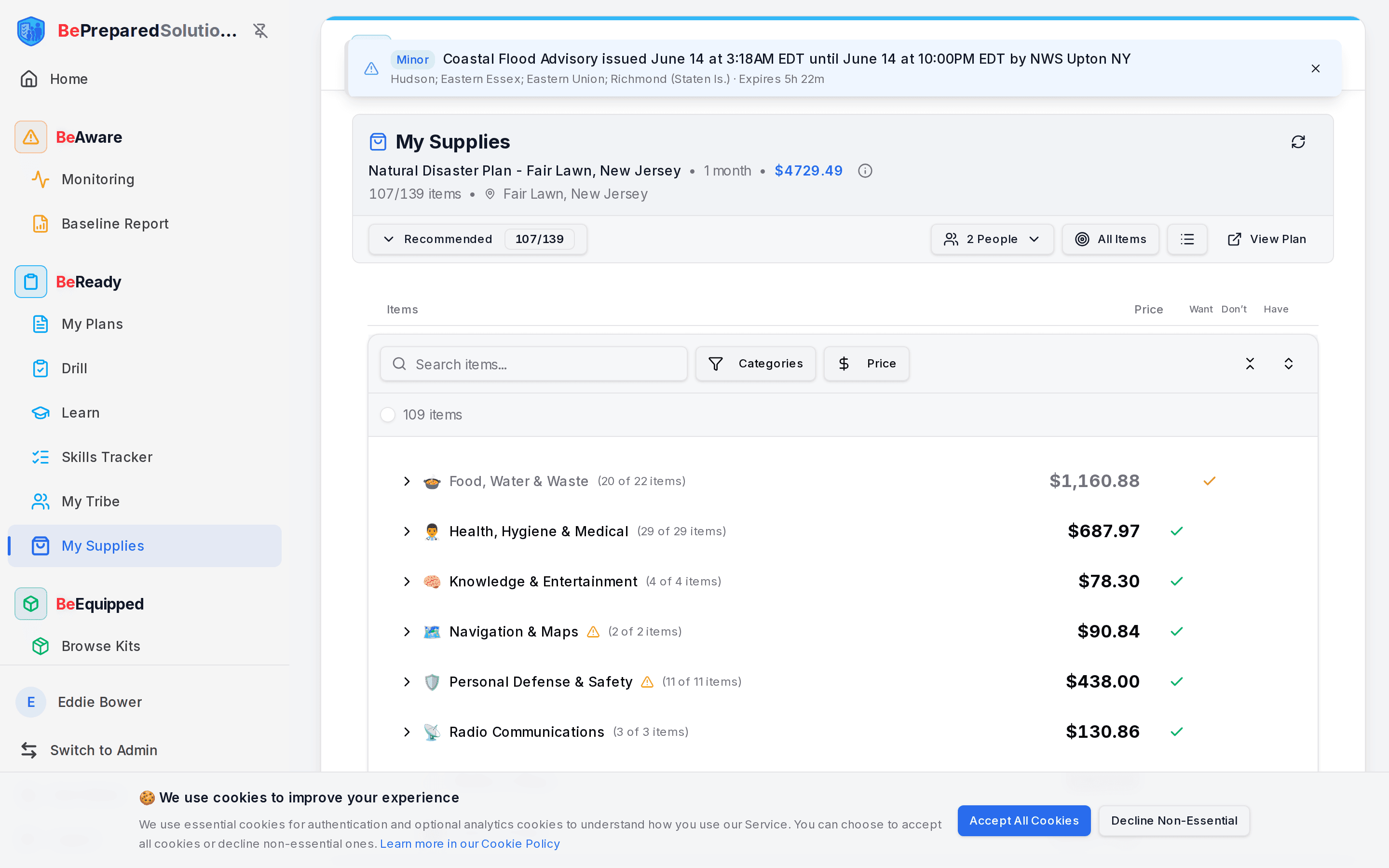
The header shows My Supplies, then your plan name, the time window and a running total. A 1-year plan shows its window as 12 months. The total covers only items marked to buy on the current tab. The next line reads, for example, "12/40 items": 12 items marked to buy out of 40 on the list. Tap the small info icon to expand the scenarios and the people the list was built for, including any medical conditions or special needs on the plan.
The list opens on Recommended. Use the Recommended menu to switch to Add-ons, which holds optional extras. Add-ons start marked as not wanted. The menu also shows counts and totals for each tab and a Grand Total.
Two views are available from the view button in the control bar:
- Simple Catalog View is the default. It groups everything by category and adds each personal item up across the people included, so one row shows the household's total.
- Per-Person View shows a Base Plan card for the first person, with Shared Supplies (for everyone) inside it, then one card for each other person.
In the Simple view you can search items, filter by category or price, and expand or collapse every category. Tick several items and use Mark as Owned to record them in one go.
Adjusting the list to what you'll buy
Choose who you're shopping for. Open the People menu and switch household members on or off. Item counts and the total update right away. The plan itself stays untouched. The first person on the plan can't be switched off, and Family items stay in either way.
Mark what you already own. Each row has an Already Have box. Enter a number up to that row's quantity. The row then shows what's left, for example "Qty: 3 (of 5)", and its price drops to cover only what's left. An indicator lists owned, needed and still needed. Entering any amount also switches the item to not wanted, so it leaves your total. A partial amount shows as partially owned ("have some, need more"), and a full amount marks it covered. Set the box back to 0 and the item returns to wanted.
Your Already Have counts are saved to your account, not just this list, so they carry over when you generate a new list with the same items.
Leave out items you won't buy. Each row has a purchase toggle with two states: Want to purchase and Don't want to purchase. Items you don't want drop out of the count and the total.
Pick variants. An item marked Select Variant needs a size or option. Open it and choose. Where it applies per person, the chooser asks once for each person by name, so the right version lands on your list.
Why don't I see My Supplies in the menu?
My Supplies joins the BeReady menu after you generate your first list. Until then, open it directly at My Supplies.
How do I change how many days the list covers?
Build a plan with the duration you want, then generate the list from that plan. The window comes from the plan's Duration answer, and the supply list has no setting of its own for it. Once the new plan is ready, click the refresh icon at the top of My Supplies, choose that plan, and click Generate Supply List. Quantities follow the new window. BeReady covers one plan at a time and Combo covers three, so check plan limits in the wizard guide first.
Generating a new list starts fresh. People switched off, variant picks and want or don't-want choices start over, while your Already Have counts stay with your account.
When the list doesn't look right
- "Plan Deleted" warning. The plan behind your list was deleted. You can still view the list, but regenerating it means choosing another plan.
- "We couldn't find products matching your plan criteria." No catalog items matched. Our team is notified automatically. Try another plan or check back later.
- The list looks stale after a plan change. Click the refresh icon, choose the plan again, and generate a fresh list.
Keeping the stock current
A family of four builds a one-month plan. Before a weekend restock, they switch the two kids off to price the adults' items alone, then switch them back on before the big shop. Another family enters everything already in the garage into Already Have, watches the list shrink, and shops only the gaps.
After the shopping, the list keeps doing a job. Restock consumables on a calm schedule, and rotate dated items like water and food as you use them. Ready.gov's kit guidance says to replace expired items as needed and rethink your needs every year. As a check on your water, Ready.gov's rule of thumb is at least one gallon per person per day for several days, for drinking and sanitation.
Supplies are the "have supplies" part of being prepared, the stage between a written plan and practice. To buy what's missing, see browsing kits in BeEquipped. To change who or what the plan covers, go back to your plans.