Most missing alerts come down to one of four things. The category or channel is switched off, the alert fell below your urgency level, your phone is not verified for texts, or the email landed in spam. Also check what you expected: outages and digital-service problems appear on your dashboard, but nothing is emailed or texted for them yet.
Does this kind of alert send messages at all?
Only official emergency alerts and environmental readings send messages today. Everything else in this table is dashboard-only for now.
| Event | Sends a message? | Where to see it |
|---|---|---|
| FEMA IPAWS and National Weather Service alerts | Yes, by email. By text or WhatsApp too, for Extreme alerts, once your phone is verified. | Emergency tab |
| Air quality, nearby rivers, wildfire | Yes, by email, when a reading reaches your chosen level (Caution unless you change it) | Environmental tab |
| Utility outages near you | Not yet. The settings page marks these rows "Messages coming soon." | Home page and Monitoring |
| Large outages on your utility | Not yet | Monitoring |
| Internet, wireless, cloud, and app outages | Not yet | Digital tab |
BeAware treats an outage as near you when it is no more than 1 mile away. A bigger one, with 500 or more customers out, counts up to 5 miles away. For a county-level outage report, your home must lie inside the reported area, and 5% or more of that utility's local customers must be without service. These rules only decide what shows on Home and the dashboard. None of them triggers a message today.
A few emergency alerts are filtered out on purpose. Tests and exercises never send. Neither do alerts the issuing agency rates Minor, or alerts that have already expired.
What does the Recent alerts list say?
It tells you whether each alert email went out and, if it did not, why. In the sidebar, open BeAware, then Alert Settings, and scroll to Recent alerts. It lists every alert email from the past 30 days, including the ones we deliberately held back.
| Label | What it means | What to do |
|---|---|---|
| Emailed | We sent it to your account email. | Check spam and promotions folders. |
| Delivery failed | The email could not be delivered. | Make sure the email on your account is one you can receive. If it keeps happening, contact support@bepreparedsolutions.co. |
| Below your urgency level | The alert was less severe than the level you picked. | Under Urgency, choose Recommended or Everything. |
| Category turned off | That category's switch, or its checkbox in the fine-tune view, is off. | Turn it back on. |
| Channel unavailable | Email could not go out for this alert, for example when your plan no longer includes BeAware. | Confirm your plan includes BeAware. |
| Daily limit reached | You already received the day's maximum number of alert emails. | Nothing. The count resets each day, and Extreme alerts always go through. |
| Alert ended before sending | The alert expired during the short wait before sending. | Nothing. It no longer applies. |
If the list reads "No alert activity in the last 30 days," nothing that met your settings matched your saved addresses. The page calls that good news, because monitoring keeps running around the clock. Open the dashboard as well. If its tabs show no active alerts near you, there is nothing to send yet. That is the normal, calm state.
Checks to run in Alert Settings
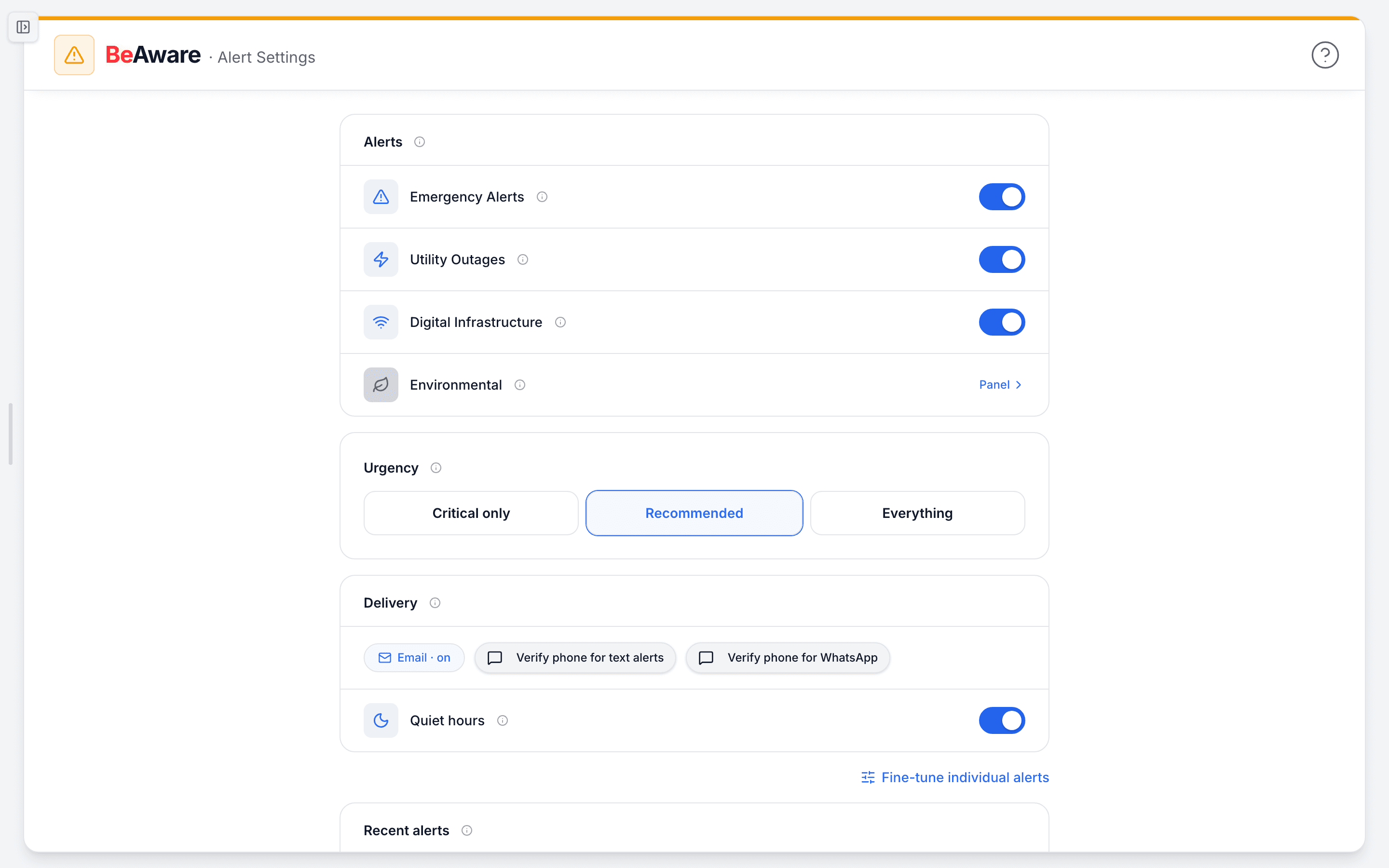
- Confirm the category is on. In the Alerts section, the Emergency Alerts switch should be on. If you switched to Fine-tune individual alerts, find the row you expected, such as "Severe Storms & Wind." At least one channel box on it must be ticked, because a row with every box empty sends nothing. The tick box at the left of each row covers all three channels for that alert. The one on a card's title row covers the whole group.
- Check your urgency level. Critical only sends just extreme, life-safety alerts. Recommended, the default, adds severe ones. Everything adds moderate advisories. If you get fewer alerts than you expect, this is the usual reason.
- Look at the channel you actually watch. It is common to have an alert on for WhatsApp while you are really watching email. In fine-tune mode, tick the column you read.
- Finish phone verification here, not on your Profile. Under Delivery, the SMS chip should say it is on. If it still asks you to verify your phone, press it, enter the 6-digit code we text you, and accept the consent step. Confirming a number on your Profile is a separate step and does not switch texts on.
- Remember that phone messages are limited to Extreme alerts. That holds whatever urgency you pick, so a Severe alert reaches you by email only. If email arrives but no text follows, the alert itself is working. Either it was not Extreme, or your phone is not verified on this page.
- Check that your changes saved. Each change shows "Alert preferences updated." If a red message says the change could not be saved, the control has already flipped back. Repeat the change, or refresh the page first.
Two more checks sit outside this page.
Your email inbox. Alerts go to the email on your account. Emergency alerts show the sender name "BePrepared Solutions." Search your mail for "BePrepared." Then mark the message "not spam" and add the sender to your contacts, so the next alert lands in your inbox.
Your saved addresses. Alerts are matched to the addresses saved in BeAware, not to where your phone happens to be. If you moved, or never finished setup, open the location button on the monitoring dashboard. Use the "..." menu beside that address and pick Edit location to fix it. For a new place, use Add location.
Messages you might see, and what they mean
- "Phone alerts are paused": your alert number is not verified, often after a number change you did not finish. Press Verify number. Email alerts continue meanwhile.
- "You replied STOP, so text alerts are off": texting STOP turned texts off. Re-enable them on the same page. WhatsApp shows its own version of this note.
- A locked chip marked "coming soon": texting or WhatsApp has not opened for your account. Email still works.
- "Too many codes requested": you asked for 3 codes within an hour. Wait an hour and try again.
- "This number is already verified on another account": a number can belong to only one BePrepared account.
Why did a neighbor get a warning I didn't?
Usually because the warning reached them a different way.
The emergency alerts built into a phone come from wireless carriers, based on where the phone is at that moment. BeAware is separate. It matches alerts to the addresses you save.
Even within BeAware, the dashboard casts a wider net than your messages. The Emergency tab reaches out 25 miles from your home and also takes in your whole county and anything statewide. A message is narrower. It goes out only when your home lies inside the alert's mapped area, or, for alerts without a map, when the alert names your county. So you can see an alert on the dashboard that never reaches your inbox.
Two other reasons are common. We send each alert once, and a later revision at the same severity stays silent. A reissued warning that is news to someone else may not arrive a second time for you. And texts need both a verified phone and an Extreme alert.
Two common cases show the pattern. In the first, friends get tornado texts while your phone stays silent. If your BeAware texts were never turned on, verify your phone under Delivery. From then on, Extreme alerts reach you by text as well as email.
In the second, you move across town and stop seeing nearby outages on the dashboard. The BeAware address still points at the old home. Editing the location fixes it, and your emergency alerts follow the new address too.
If one particular warning never reached you while others do, see why a specific alert didn't reach you.
For every control on the settings page, step by step, see the full alert setup guide.