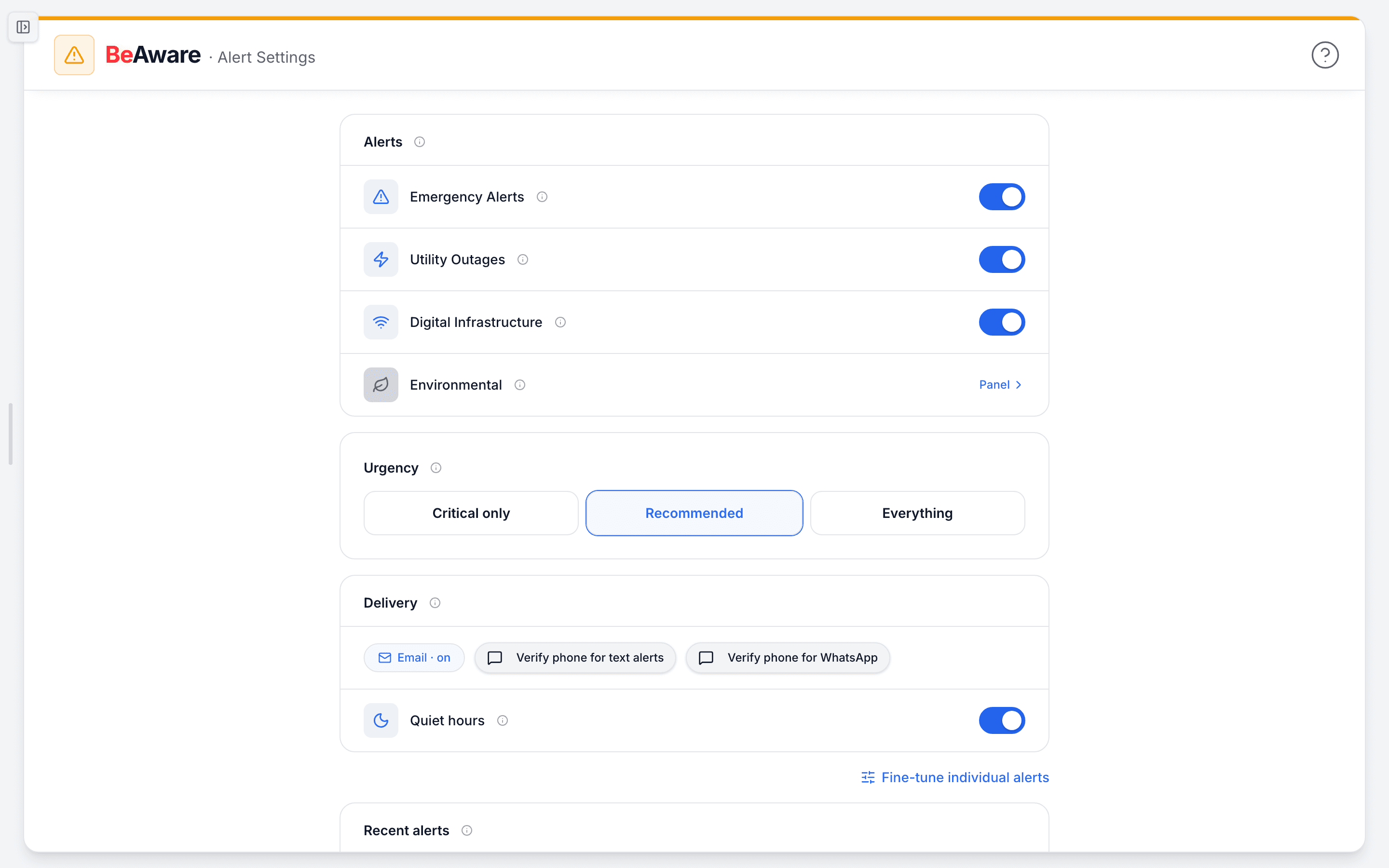
Open Alert Settings under BeAware in the left sidebar, or go to /beaware/alert-settings. Turn alert categories on or off, choose how urgent an alert must be, and add text or WhatsApp by verifying your phone there. Email is always on. Changes save on their own, and "Alert preferences updated" confirms each one.
What sends a message today
Before you tune anything, it helps to know which events can reach you outside the app.
- Emergency alerts from FEMA's IPAWS system and the National Weather Service. These go out by email, and by text or WhatsApp once you turn those on. Only real, current alerts of Moderate severity or higher are sent. Tests, exercises, and Minor alerts never are.
- Environmental alerts when air quality, a nearby river, or a wildfire reaches your chosen level. These arrive by email. You set their levels on the dashboard, not on this page.
- Utility outages do not send messages yet. The page marks those rows "Messages coming soon" and saves your choice for later. Meanwhile, Alerts Near Me covers outages within 1 mile of your address, or larger ones (500 or more customers) within 5 miles. Those show on your Home page and on Monitoring. A county-wide outage area counts when your address sits inside it and at least 5% of the utility's customers there are out. Large Power Outages on your utility show on Monitoring.
- Digital infrastructure outages, such as internet, wireless, and cloud services, show on the dashboard's Digital tab. No messages go out for them yet either.
Further down the page, the Your providers card asks who supplies your home internet and mobile service. As the card says, "We don't send alerts for these yet." Your answers help decide which outage feeds get built next.
Which alerts does each switch control?
Each switch in the Alerts section turns email on or off for one whole category. The section lists four rows:
- Emergency Alerts: weather, geological, fire, and public-safety alerts for your addresses.
- Utility Outages: power outages near you and large outages on your utility.
- Digital Infrastructure: internet, wireless, cloud, and everyday online services.
- Environmental: this row has no switch. Its Panel link takes you to the dashboard. There, the gear icon lets you pick the reading that triggers an email for each of the three measures, or turn one off. What each reading means has the numbers behind them.
To stop phone messages for a category too, uncheck its SMS and WhatsApp boxes in the fine-tune view, or turn those channels off under Delivery. Everything still shows on your dashboard either way. This page only decides what earns a notification.
Emergency Alerts cover five categories. Tap the info icon beside any of them in the fine-tune view to see the full list.
| Category | Examples of what it includes |
|---|---|
| Severe Storms & Wind | Tornado, severe thunderstorm, hurricane, tropical storm, high wind, extreme wind, and dust storm alerts |
| Floods, Winter & Temperature Extremes | Flash flood, flood, coastal flood, storm surge, blizzard, winter storm, snow squall, wind chill, freeze, and excessive heat alerts |
| Geological | Earthquake, avalanche, volcano, landslide, and tsunami alerts |
| Fire & Hazardous Materials | Fire, industrial fire, nuclear power plant, radiological, and hazardous materials warnings |
| Public Safety | AMBER alerts, missing and endangered persons, Blue alerts, civil emergencies, evacuations, shelter in place, and 911 outages |
An alert that does not match any category is filed under Public Safety, so a real warning is never dropped.
How urgent does an alert have to be?
As urgent as the level you pick in the Urgency section. Agencies label every alert with a severity, and BeAware notifies you at or above your level:
- Critical only: extreme, life-safety alerts, such as tornado warnings and evacuations.
- Recommended (the default): extreme and severe alerts. For most areas, that is a handful of times a year.
- Everything: every monitored event, including moderate advisories.
Pick the level you would actually act on. Alerts link knowing your risk to acting on it, so when one lands, your BeReady plan should already hold what to do.
Text and WhatsApp messages follow a stricter rule. They go out only for Extreme alerts, whatever you pick here, because they interrupt harder than email.
Timing depends on severity. Extreme alerts are sent as soon as they are processed. Severe alerts are held for about 5 minutes and moderate ones for about 15, so a burst of related alerts arrives as one email. A plain update to an alert you already received does not send again. If an alert is upgraded to Extreme, you hear about it right away. Smaller upgrades are spaced out so the same alert does not flood your inbox.
Adding text or WhatsApp
The Delivery section shows your channels. "Email · on" is always there. The SMS and WhatsApp chips show one of four states:
- "Verify phone for text alerts" (or "for WhatsApp"): no verified number yet.
- "Enable text alerts" (or "Enable WhatsApp alerts"): your number is verified, but this channel is off.
- "SMS · on" or "WhatsApp · on", with a Turn off link: the channel is active.
- "SMS · coming soon" or "WhatsApp · coming soon" with a lock: the channel is not available on your account yet.
To turn on texts:
- Press the SMS chip. Enter your mobile number with its country code. The United States is the default.
- Press Send code. We text you a 6-digit code. Enter it and press Verify. If it does not arrive, use Resend code or Change number.
- Tick the consent box. It confirms you agree to automated emergency alert texts from BePrepared Solutions. Consent is not a condition of purchase, message and data rates may apply, and you can reply STOP at any time.
- Press Turn on text alerts. A welcome text follows with STOP and HELP instructions.
WhatsApp uses the same number. Once your number is verified, turning on the second channel skips straight to the consent step. WhatsApp sends no welcome message.
A few limits apply. You can request 3 codes per hour. A number already verified on another BePrepared account cannot be used here.
Verifying a phone on your Profile page does not turn on alerts. Even if your profile shows "Verified via SMS," texts and WhatsApp need the code and consent steps on this page. If your profile already has a number, the dialog fills it in for you.
Changing your number. Once a phone channel is on, a line reads "Phone alerts go to" your number, with a Change number link. Text and WhatsApp share that number. While a new number waits for its code, phone alerts pause and email continues as usual. If you reply STOP to a text, texts turn off and this page tells you so. Turn them back on here.
Quiet hours. This switch is on by default. It holds back non-critical text and WhatsApp messages overnight, from 10 p.m. to 7 a.m. The info icon shows the window. Extreme alerts always break through, and email is never held. A held text is not sent later, because the email has already covered it. Texts are currently limited to Extreme alerts, which always break through, so today the switch rarely changes anything.
Fine-tune individual alerts
Choose Fine-tune individual alerts at the bottom of the page to set each alert on each channel.
- Each row has three checkboxes: Email, SMS, and WhatsApp. Leave a column unchecked to keep that alert off that channel.
- The checkbox at the start of a row turns all three channels on or off for that one alert.
- The checkbox in a card's header turns every alert in the group on or off across all channels. It shows a dashed (indeterminate) state when only some are on.
- The info icon lists exactly which warnings sit under each row. The utility rows also carry a "Messages coming soon" tag.
The fine-tune view is exact: each checkbox decides on its own. Press Back to simple settings to return. In the simple view, a category counts as on for a channel when any alert inside it is checked. The text and WhatsApp boxes still need a verified phone and still apply only to Extreme alerts.
Two examples. A parent in a flood-prone area checks SMS for Floods, Winter & Temperature Extremes and for Public Safety, so the most urgent evacuation and shelter-in-place alerts reach their phone. Everything else stays on email.
A remote worker wants to know about internet and cloud outages before a client does. Those aren't sent as messages yet, so they keep an eye on the dashboard's Digital tab instead. Its Resolved switch adds anything resolved over the past 72 hours.
Did my change save?
Yes, if you saw "Alert preferences updated." There is no Save button. Each change writes itself a moment after you tap.
If a save fails, you see "Couldn't save — reverted your last change," and the control flips back. That way the page never shows an alert as on when it is not. Try again, or reload the page.
Changing a category or the urgency level never turns texts or WhatsApp on or off. Only the phone steps above do that.
The Recent alerts list closes out the page with a month of alert email history. Each line shows "Emailed," "Delivery failed," or why an alert was held back. Typical reasons are "Below your urgency level" and "Category turned off." An empty list means nothing reached your bar during that time. If something you expected never arrived, walk through why alerts might not reach you.